Keeptake
Free Screen Recorder
A free screen recorder for Chrome, with your webcam and sound. It saves as you record, so a crash or a closed tab won’t lose your video.
- Platform
- Chrome extension
- When
- Nov 2026
- Role
- Sole developer
- Version
- 0.4.0, 2 Nov 2026
- Price
- Free
- Status
- In review for the Chrome Web Store
How it works
5 steps- 01
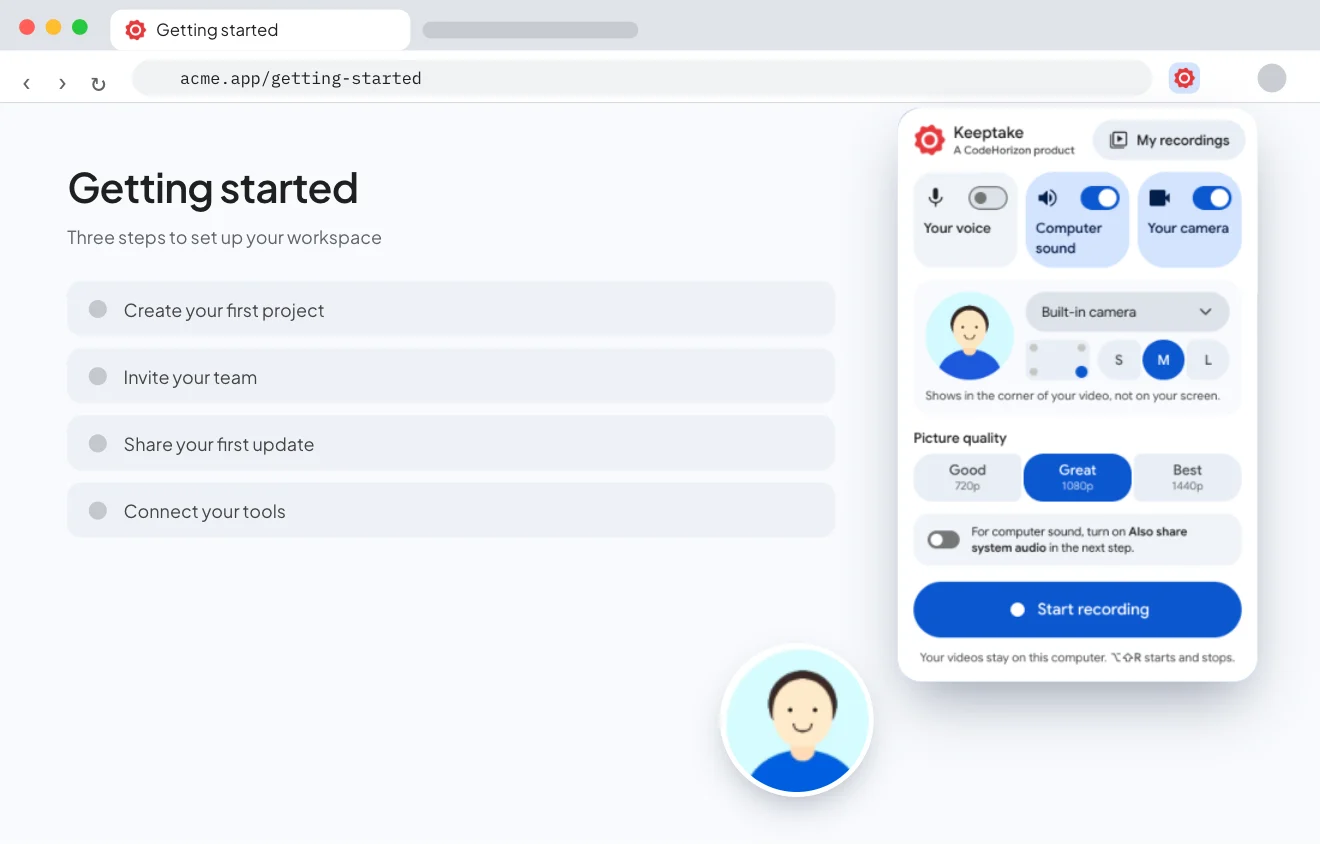
Choose what to record
A screen, a window or a tab, with your microphone, computer sound and camera. The camera goes in the corner you pick.
Open larger: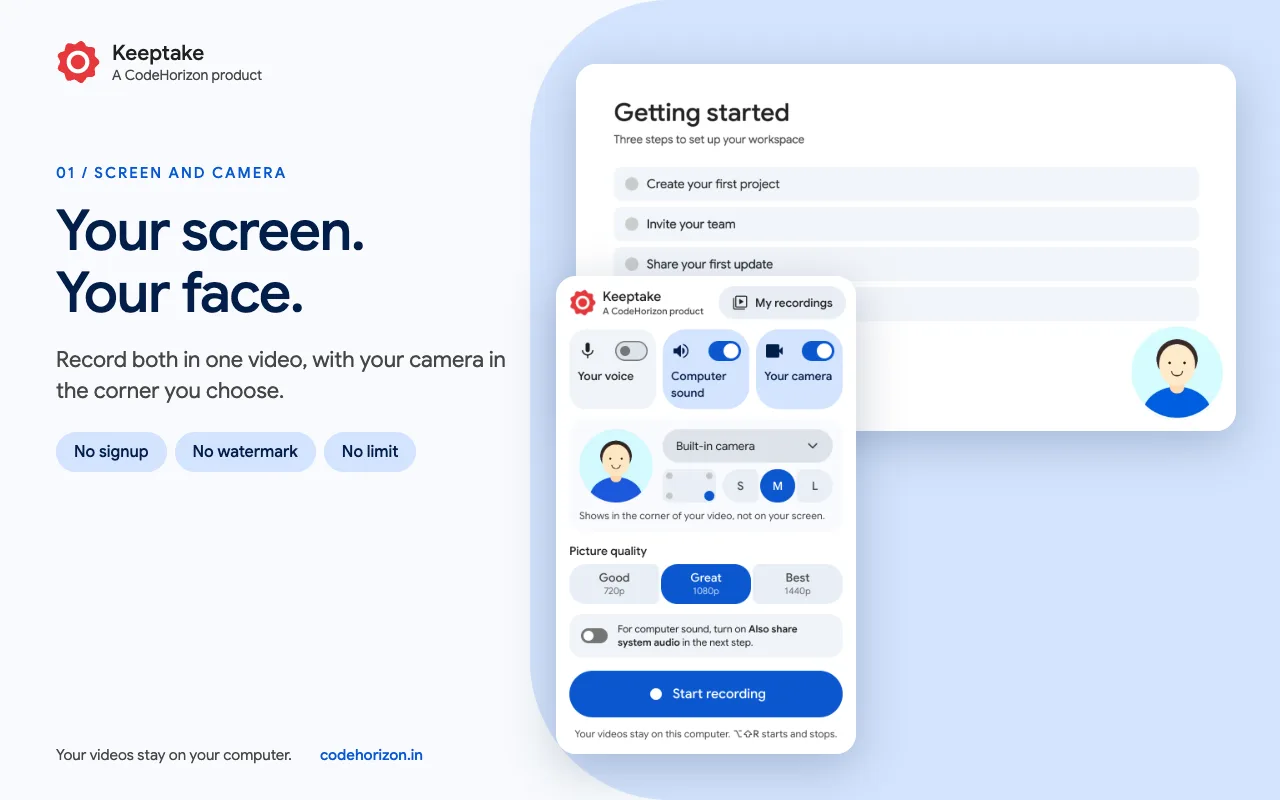
- 02
Record without worrying
Every second is saved to your computer. If Chrome crashes or the tab is closed, the video is recovered.
Open larger: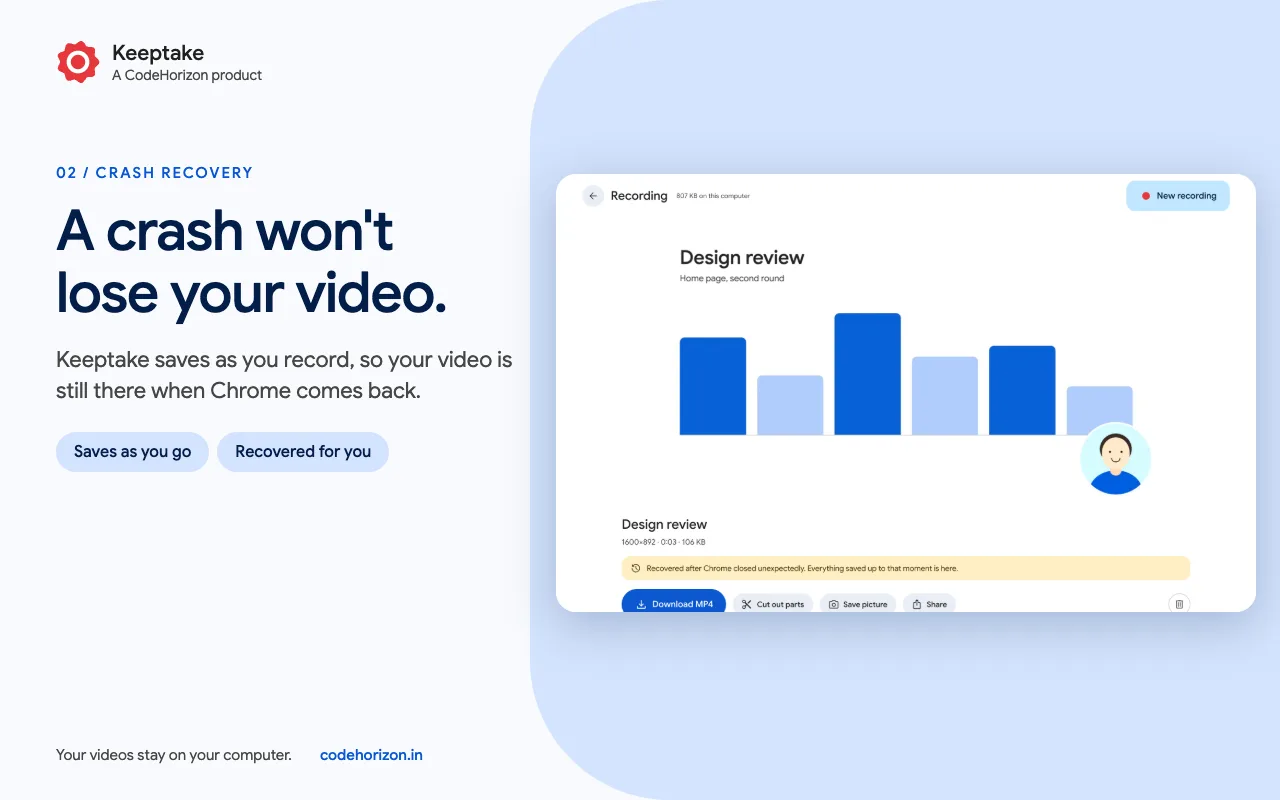
- 03
Catch a silent video early
Keeptake tests your mic, and asks if Chrome’s sound switch is off before anything records.
Open larger: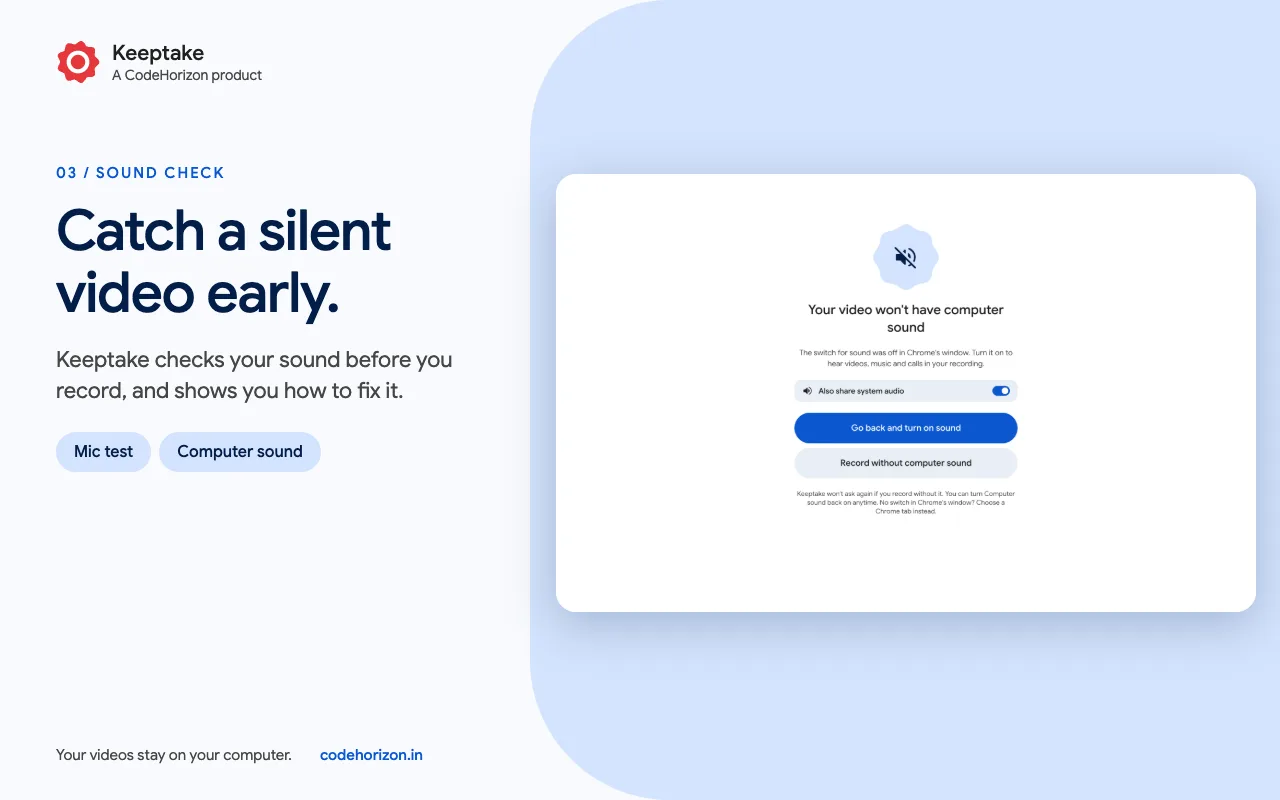
- 04
Cut out mistakes
Mark the parts you don’t want. The new copy keeps full quality, and your original stays untouched.
Open larger: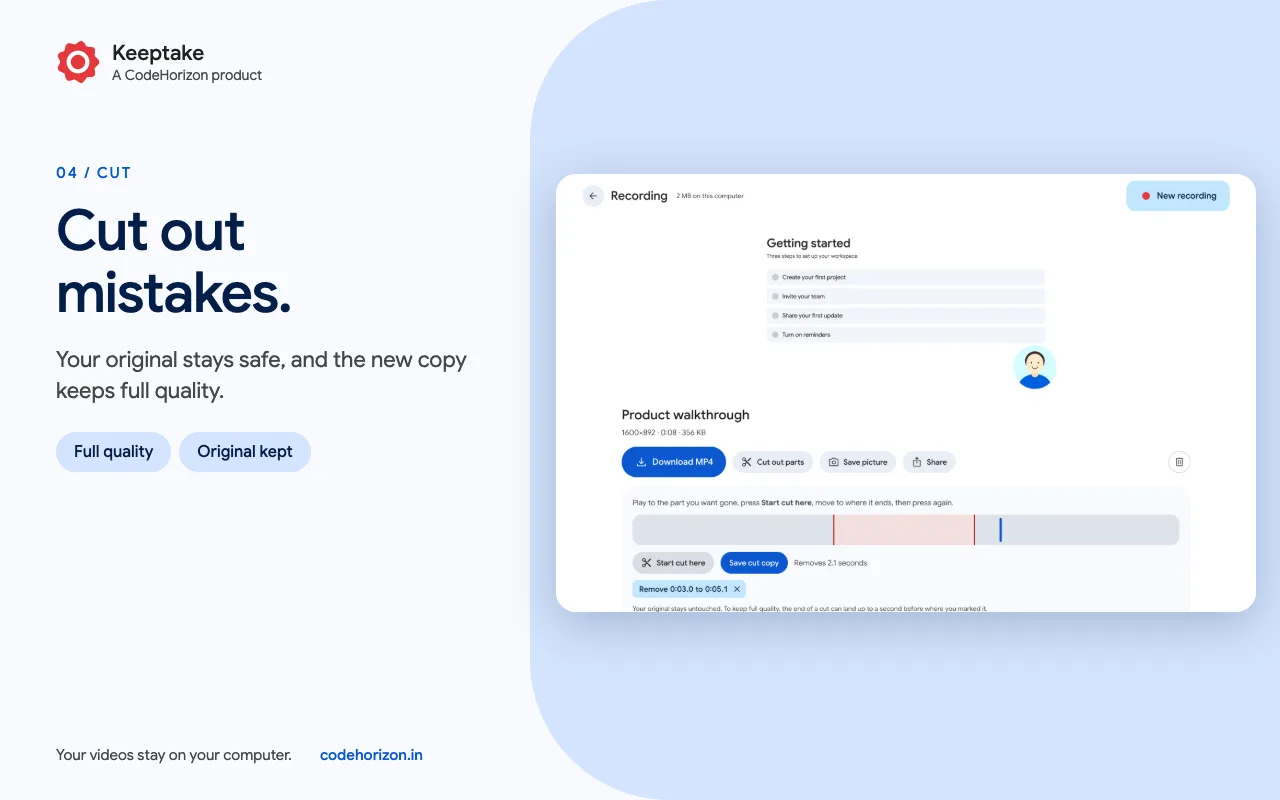
- 05
Keep every take together
Search and sort your videos, then download one as an MP4 or several as one zip.
Open larger: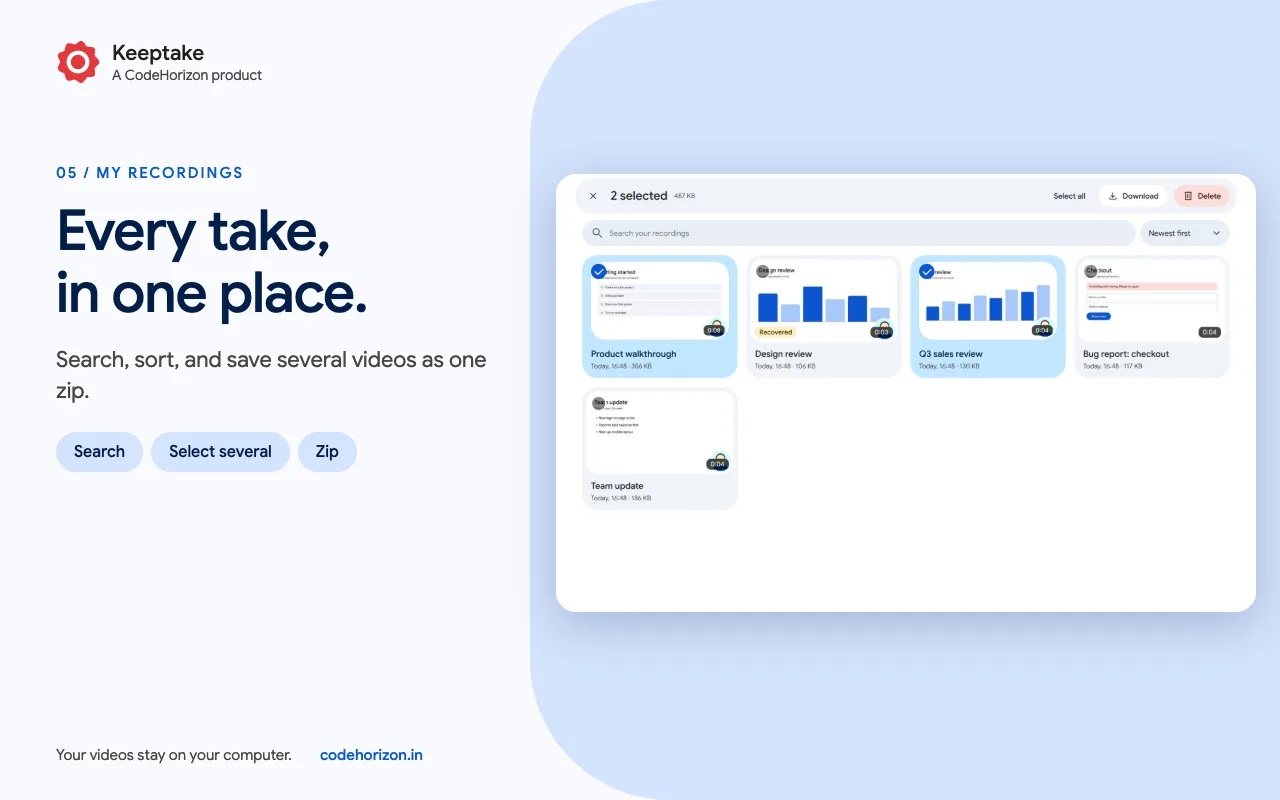
The problem
A recorder that holds your video until you press Stop can lose all of it to one crash. And a silent video usually isn’t noticed until it’s too late to record it again.
What I built
A Manifest V3 extension with no remote code and no host permissions. Chrome only lets the page that opened the source picker use the capture, so recording happens in its own pinned tab. MediaRecorder hands over a piece every second, and each piece goes straight into IndexedDB. When you stop, Mediabunny turns the pieces into an MP4, copying the H.264 video rather than encoding it again. The camera is drawn over the screen in a worker, on an OffscreenCanvas.
Hard partKeeping a recording whole when the tab making it is hidden, closed or crashes.
What it does
- 01
Saves as you record
Your video is written to your computer every second, and a crash or a closed tab recovers what was saved.
- 02
Catches a silent video
A microphone test, a check on Chrome’s sound switch, and a warning if your mic stays quiet.
- 03
Your camera in the corner
Pick the corner and the size. It’s part of the video, so it works for a screen, a window or a tab.
- 04
Cut out mistakes
Remove the parts you don’t want, in a new copy with the same quality.
- 05
No signup, no watermark
No limit on how many videos you make or how long they run. Your disk space is the only limit.
- 06
Your recordings, together
Search, sort and select them, download several as one zip, or save any moment as a picture.
Under the hood
- 01Chrome’s pickerA screen, window or tab
The picker is opened by a pinned tab, because only the page that opens it can use the capture.
- 02Camera workerScreen and camera, drawn together
A dedicated worker draws both at 30 frames a second, because a hidden tab’s timers slow to about one a second.
- 03MediaRecorderA piece every second
Each piece is saved to IndexedDB as it arrives, so a crash only costs the last moment.
- 04MP4Checked, then kept
The pieces become an MP4 on your computer, and are deleted only after the new file passes its check.
A hidden tab keeps its frame rate
With the recorder tab really hidden, Chrome ran the page’s timer 4 times in 3 seconds instead of 60. The worker doesn’t slow down, so the video still came out at 30 frames a second.
Tested on Mac and Windows
207 end-to-end checks run in real Chrome and read the finished MP4 back with ffmpeg. They kill the browser mid-recording to prove recovery. They use Chrome’s simulated camera and mic, and a real camera and real sound were checked by hand on a Mac.
In the code
Only the newest frame is kept
Chrome stalls a capture that has too many frames still open. So each stream keeps one frame and closes the one before, and the drawing loop always has the latest of both.
src/camera-worker.js, lines 26 to 33
async function keepNewest(readable, keep) {
  const reader = readable.getReader();
  for (;;) {
    const { value, done } = await reader.read();
    if (done) return;
    keep(value);
  }
}Decisions
- 01
The camera is part of the video, not a bubble on your screen
A bubble floating over other sites needs access to every one of them. Drawing it into the video needs none.
Trade-offYou see your camera in the recorder tab and the popup, not on the screen you’re recording.
- 02
Copy the H.264 video instead of encoding it again
Making the MP4 stays quick and loses no quality, and cuts are made without encoding again too.
Trade-offA cut can only start on a keyframe, so the page shows where each one will really land.
A bug I remember
The recording that never started
- What it did
- On a real computer, with a camera that never answered, the recorder sat on “starting” forever and nothing was recorded.
- Why
- Asking for the camera can wait forever, and the recording was waiting for that answer. Chrome’s simulated camera always answers, so the tests couldn’t see it.
- The fix
- It now checks the permission first and gives the camera 8 seconds. If there’s no answer, it records the screen and tells you why the camera is missing.
Timeline
0.4.0, submitted to the Chrome Web Store
Screen, window or tab recording with mic, computer sound and camera, crash recovery, cuts and zip downloads.
Built with
JavaScriptManifest V3MediaRecorderWebCodecsMediabunnyIndexedDBPlaywright
Your dataNo account, no analytics and no servers. Your videos stay in Chrome’s private storage on your computer.
Keeptake is in review for the Chrome Web Store, so it isn’t there to install yet.
Every screen
5 from its Chrome Web Store listing- Open larger:
01Your screen and your face, in one video
- Open larger:
02A crash won’t lose your video
- Open larger:
03Catch a silent video early
- Open larger:
04Cut out mistakes
- Open larger:
05Every take, in one place