SecureVault
An encrypted vault behind a calculator that really works. Type your code and press equals, and a separate vault password or your fingerprint opens it.
- Platform
- Android
- When
- Apr to Sep 2025
- Role
- Sole developer
- Version
- 7.10, 8 Oct 2026
- Price
- Free, with a one-time upgrade
- Status
- Live on Google Play
How it works
5 steps- 01
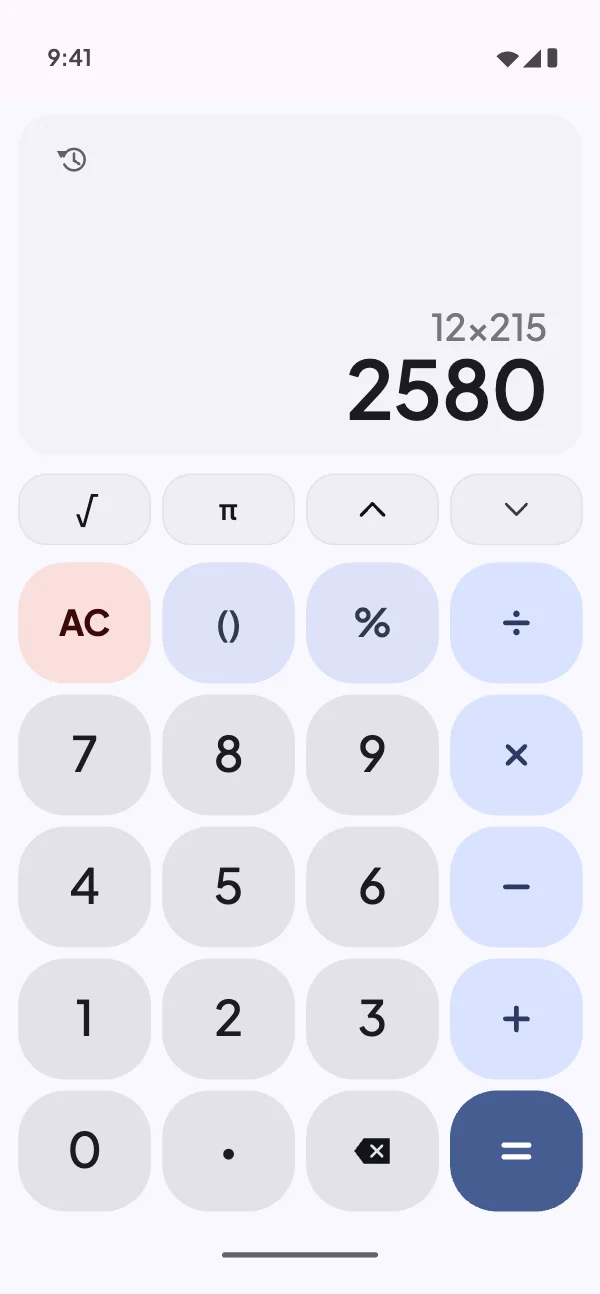
Use it as a calculator
Percentages, powers, roots, trigonometry and a history. It genuinely works.
Open larger: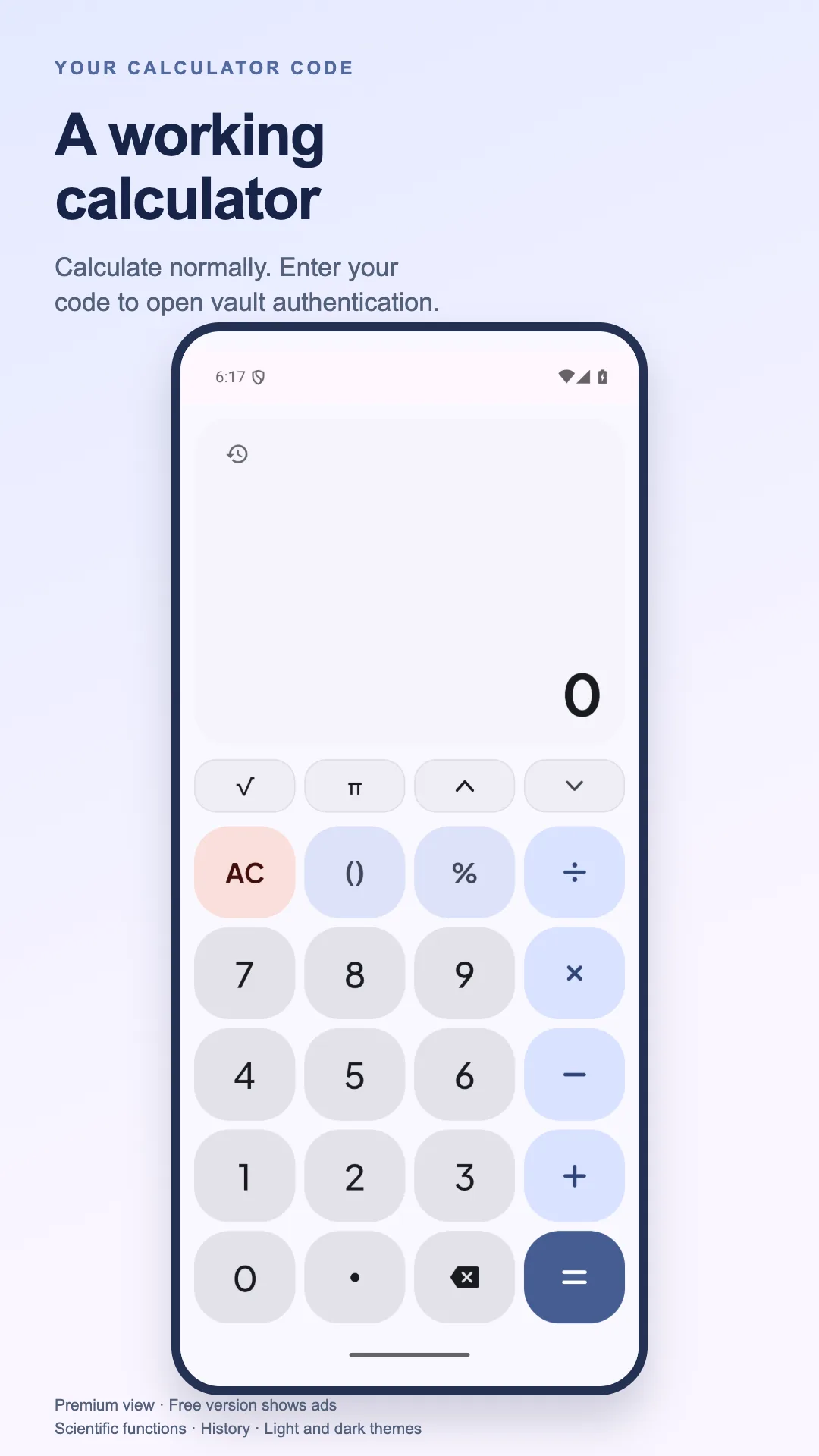
- 02
Type your code, then equals
The calculator brings up the vault’s lock: a separate vault password, or your fingerprint or face on phones that have it.
Open larger: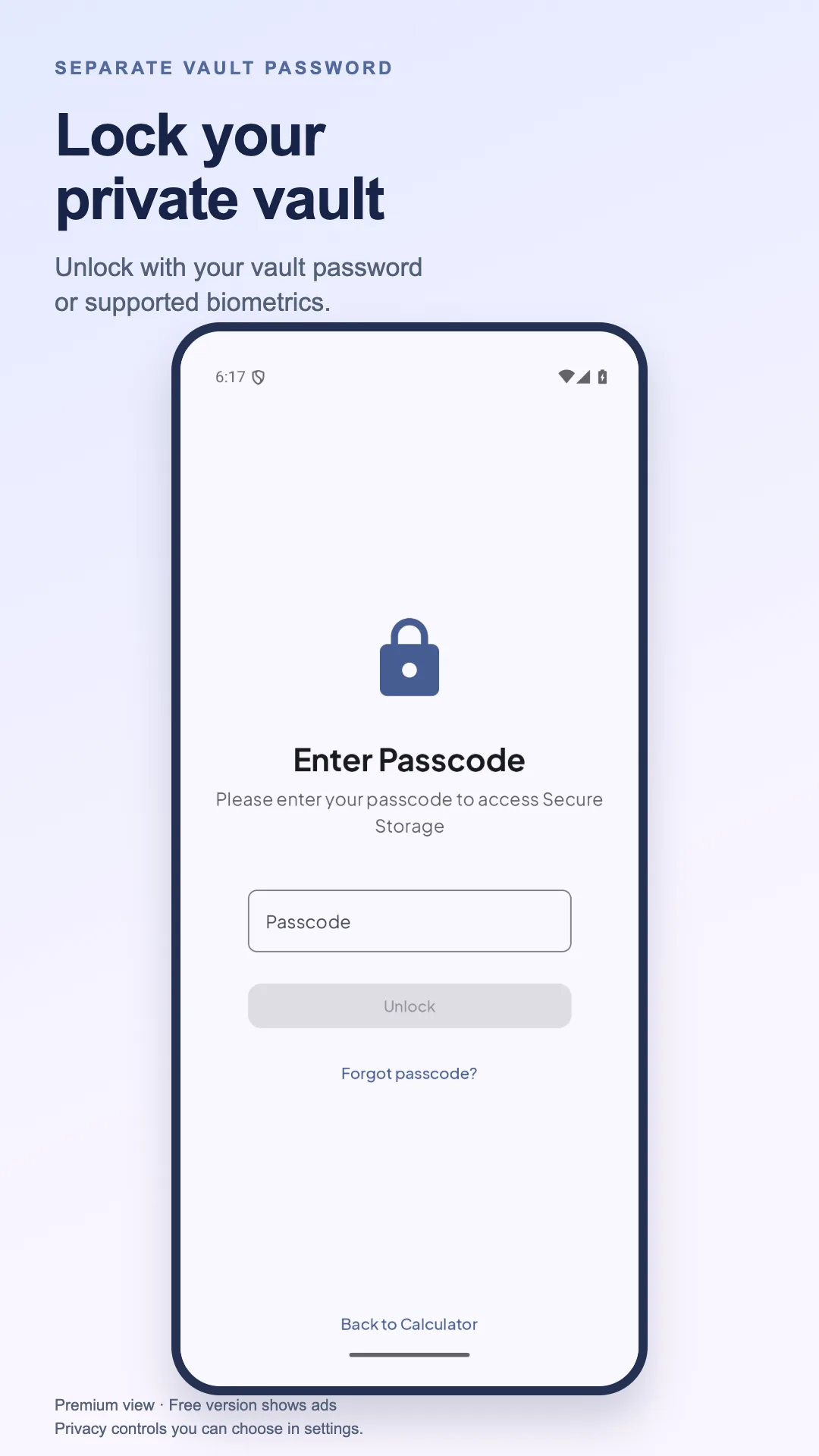
- 03
Add your first private file
Choose a photo, video or document. The vault saves an encrypted copy, and the original stays where it was.
Open larger: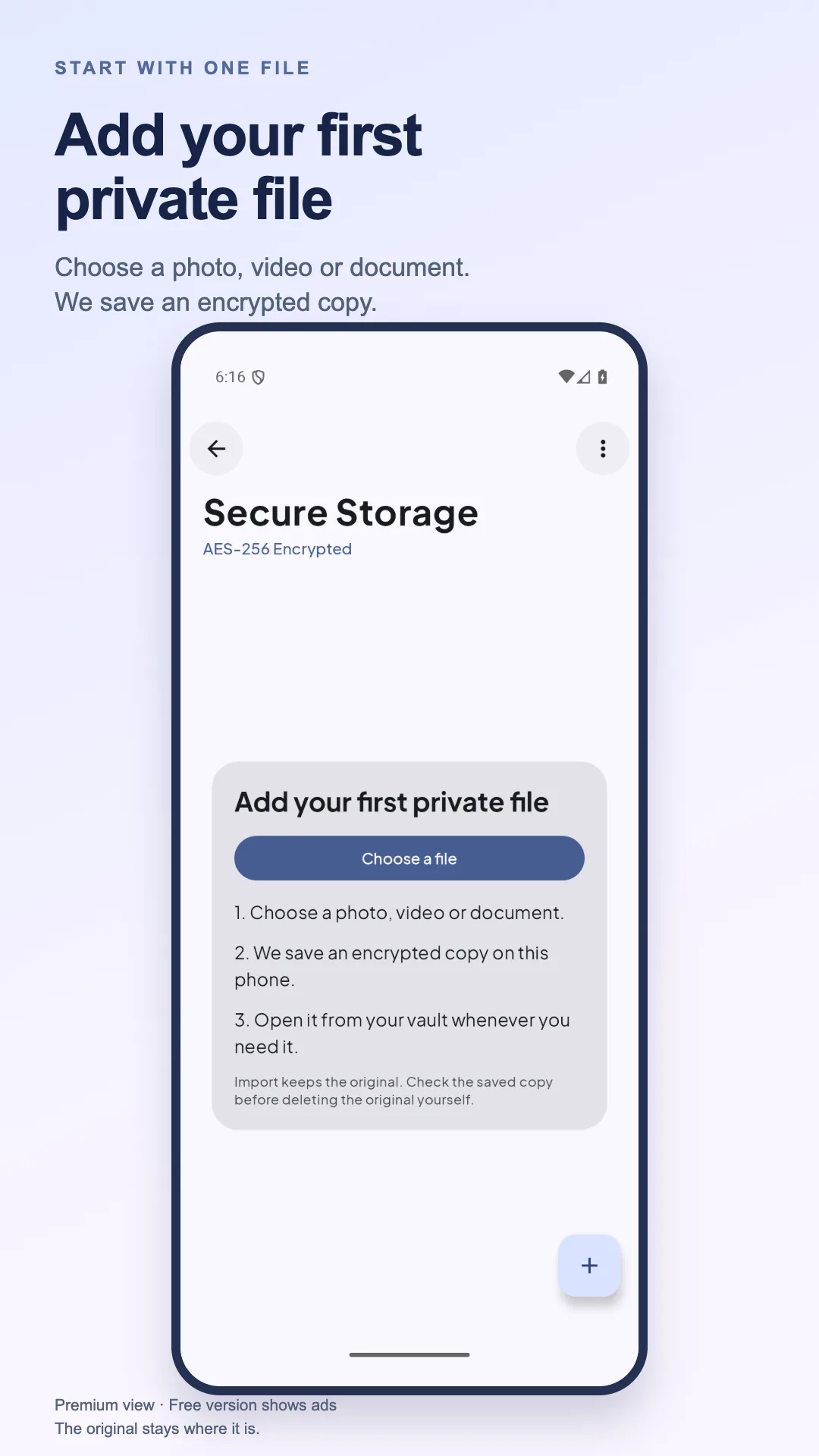
- 04
Keep it organised
Folders, renaming, moving and sharing, all inside the vault. Photos and videos open only there.
Open larger: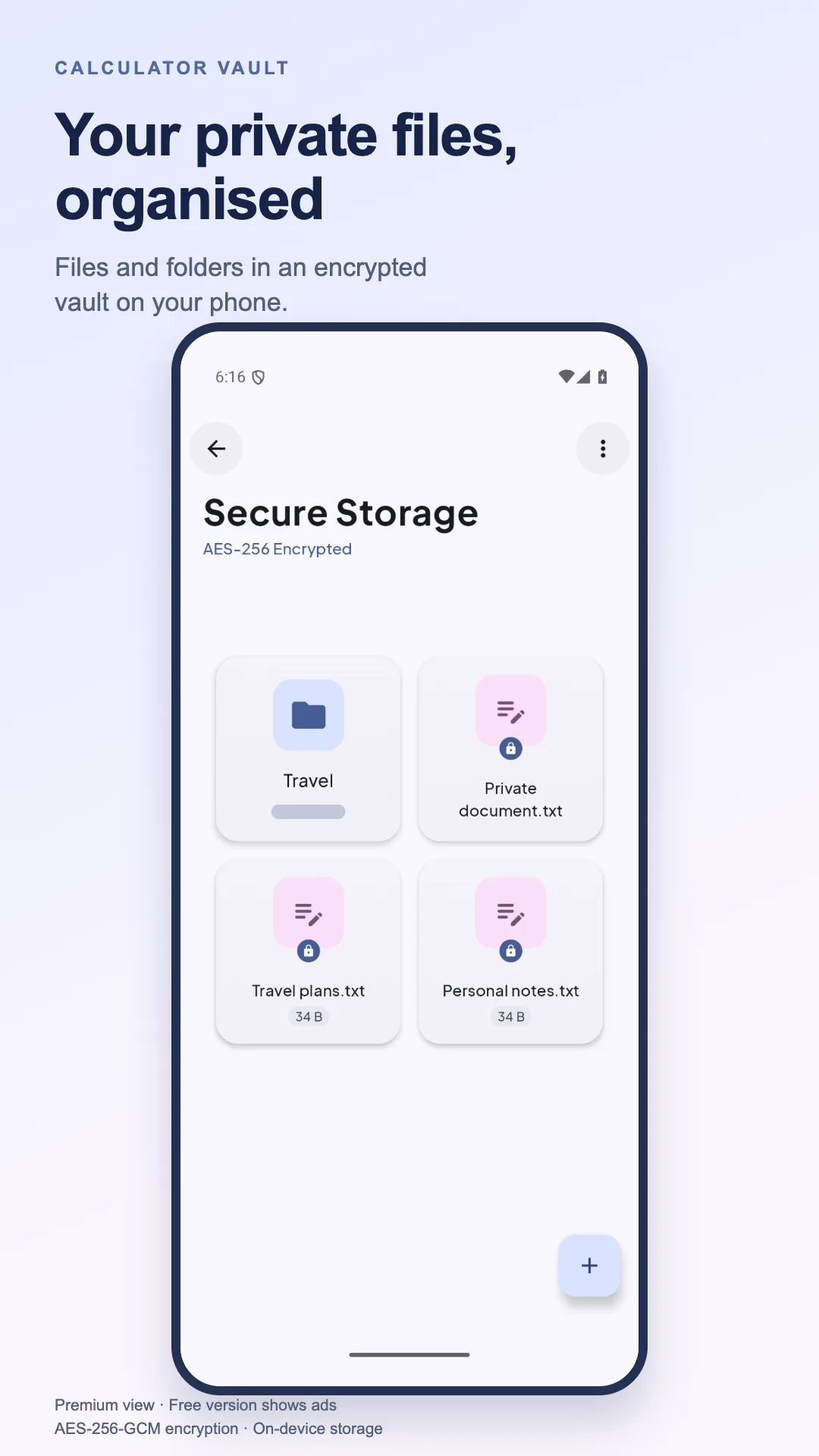
- 05
Work on many at once
Select several files to share, move or delete together, with Premium, or for 30 minutes after an optional video.
Open larger: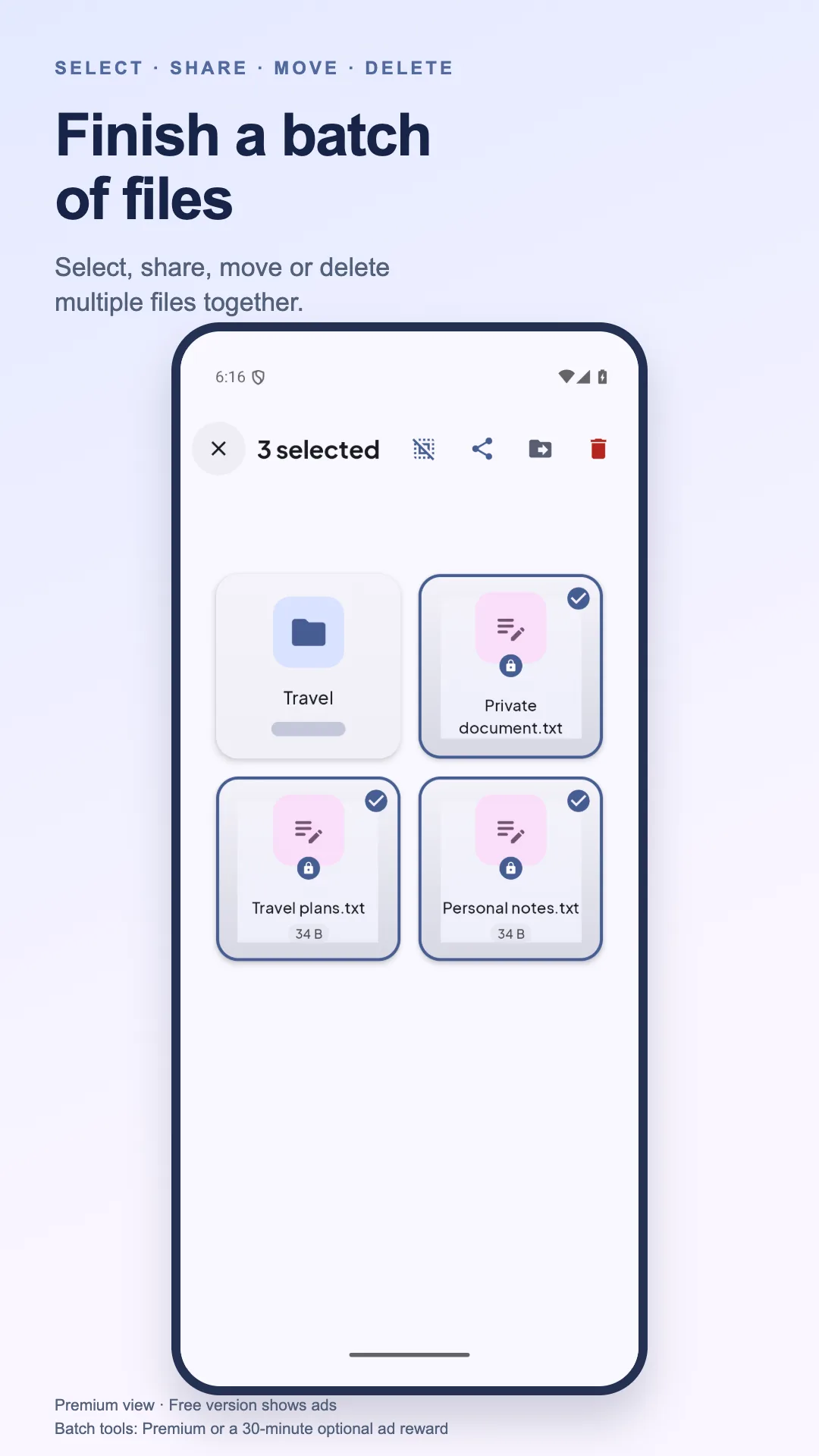
The problem
Phones get borrowed, handed around and picked up, and a gallery of private photos or an ID scan is one tap away from whoever’s holding one. A friend kept sensitive documents in a folder called “boring stuff”. Most vault apps announce themselves with a big padlock icon. The disguise is the point.
What I built
A working calculator that opens an encrypted vault: your code and equals bring up its lock, and a separate vault password or your fingerprint opens it. Files are encrypted on-device with Android Security Crypto, using keys held in the Android Keystore. It supports biometric unlock with a passcode fallback, and is built with Jetpack Compose, MVVM, Coroutines and StateFlow.
Since then it’s grown a decoy vault that a second passcode opens, a photo of whoever guesses wrong, private notes, and a viewer for photos, videos and audio, so nothing has to leave the vault.
Hard partMaking the disguise feel exactly like a calculator, and keeping Keystore keys intact across app updates.
What it does
- 01
AES-256-GCM encryption
Keys protected by the Android Keystore, with filenames and metadata encrypted too.
- 02
Hidden in plain sight
Pick the name shown on your home screen. Invisible to file managers.
- 03
Screenshot blocking
Sensitive screens are blocked from screenshots and hidden from recent apps.
- 04
No cloud, no account
No sign-up and no uploads. There are no servers for your files to go to.
- 05
A decoy vault
A second passcode opens an empty vault, if someone makes you unlock it.
- 06
Shake to lock
Shake the phone and the vault locks straight away.
Under the hood
- 01CalculatorA real one, parsed with the Shunting Yard algorithm
The disguise is a full engine of its own: expressions are parsed with the Shunting Yard algorithm, with scientific functions, live results as you type, and a history.
- 02Your codeTyped in, then equals
Type your code and press equals, and the calculator brings up the vault’s lock, which wants a separate vault password or your fingerprint. A second passcode can open an empty decoy vault instead.
- 03Android KeystoreHolds the keys; files are AES-256-GCM
The master key lives in the Android Keystore and never leaves it. Files are encrypted with AES-256-GCM, and so are their names and metadata.
- 04The vaultA separate Compose tree
Vault screens are blocked from screenshots and hidden from recent apps, vault files don’t show up in file managers, and it locks itself after a while, back to the calculator.
A calculator that really is one
The disguise is a full engine of its own: expressions are parsed with the Shunting Yard algorithm, with scientific functions, live results as you type, and a history.
Encrypted down to the names
Files are encrypted with AES-256-GCM, the keys never leave the Android Keystore, and filenames and metadata are encrypted too.
Nothing on screen gives it away
Vault screens are blocked from screenshots and hidden from recent apps, vault files don’t show up in file managers, and you choose the name on the home screen.
In the code
Keys in the Keystore, files in AES-256-GCM
The master key is made in the Android Keystore and never leaves it. Each file is streamed through AES-256-GCM in 4 KB segments, so a large file is never held whole in memory.
data/security/FileEncryption.kt, lines 34 to 64, cut short
private val masterKey: MasterKey by lazy {
    MasterKey.Builder(context)
        .setKeyScheme(MasterKey.KeyScheme.AES256_GCM)
        .build()
}

/**
 * Encrypts a file and saves it to the secret storage directory
 */
fun encryptFile(sourceFile: File, destinationDir: File, fileName: String): File? {
    return try {
        if (!destinationDir.exists()) {
            destinationDir.mkdirs()
        }

        val encryptedFile = File(destinationDir, "$fileName.enc")

        // Create encrypted file using Android Security library
        val androidEncryptedFile = EncryptedFile.Builder(
            context,
            encryptedFile,
            masterKey,
            EncryptedFile.FileEncryptionScheme.AES256_GCM_HKDF_4KB
        ).build()

        // Copy source file content to encrypted file
        sourceFile.inputStream().use { input ->
            androidEncryptedFile.openFileOutput().use { output ->
                input.copyTo(output)
            }
        }
// …Decisions
- 01
Android Security Crypto instead of hand-rolled AES
It handles key generation, Keystore storage and AES-GCM correctly. Writing my own crypto would have been the risky part.
Trade-offLess control over cipher parameters, but the defaults are sound.
- 02
Completely separate composable trees for the calculator and the vault
State changes happen in the ViewModel, and neither screen knows the other exists, so shared state can’t accidentally give the disguise away.
Trade-offMore boilerplate.
A bug I remember
Files that wouldn’t decrypt
- What it did
- After the app was reinstalled, encrypted files failed to decrypt, with a generic exception that didn’t say why.
- Why
- The Keystore key was being generated again, so files encrypted with the old one could no longer be read. The error looked like corrupt data, not a key that had changed.
- The fix
- On launch, the app hashes the current key and compares it with the hash stored alongside the vault. If they differ, it shows a recovery flow instead of failing silently.
What I tried first
Hiding files inside images
Steganography was the first idea, for deniability. Doing it without visible artefacts or tell-tale file sizes is a hard problem, and AES from Android’s own security library is audited and already there.
A PIN on its own
A PIN can be seen over your shoulder, which defeats a disguised vault. A fingerprint is harder to watch and quicker to use.
What I learned
- The biometric APIs changed a lot between API 23, 28 and 30. Test on the oldest phone you support.
- Keystore key aliases are permanent once created. Plan their migration, or people lose their vault in an update.
- Making the disguise convincing was harder than the crypto. Any awkward interaction gives it away.
Timeline
6.0, on Google Play
A calculator on the outside and an encrypted vault inside, with a built-in camera, screenshot blocking and an offline recovery question.
6.5
Shake to lock: shake the phone and the vault locks straight away.
7
A decoy vault, intruder selfies, private notes and a viewer for photos, videos and audio. And the app became free to download.
7.7
Setup says exactly what you’re choosing, and your passcode is stored with much stronger protection.
7.10
A guided import for your first private file, and an optional video that unlocks 30 minutes of selecting, sharing, moving and deleting files together.
Built with
KotlinJetpack ComposeMVVMCoroutinesStateFlowAndroid KeystoreSecurity CryptoBiometricPrompt
Your dataYour files never leave the phone: no account, no registration and no cloud upload. The free version shows ads, and a one-time purchase removes them.
Every screen
5 from the store listing- Open larger:
01Your private files, organised in folders in an encrypted vault
- Open larger:
02Add your first private file: the vault saves an encrypted copy
- Open larger:
03Lock your vault with a separate password or biometric unlock
- Open larger:
04A working calculator: your code and equals open the vault’s lock
- Open larger:
05Select, share, move or delete many files together